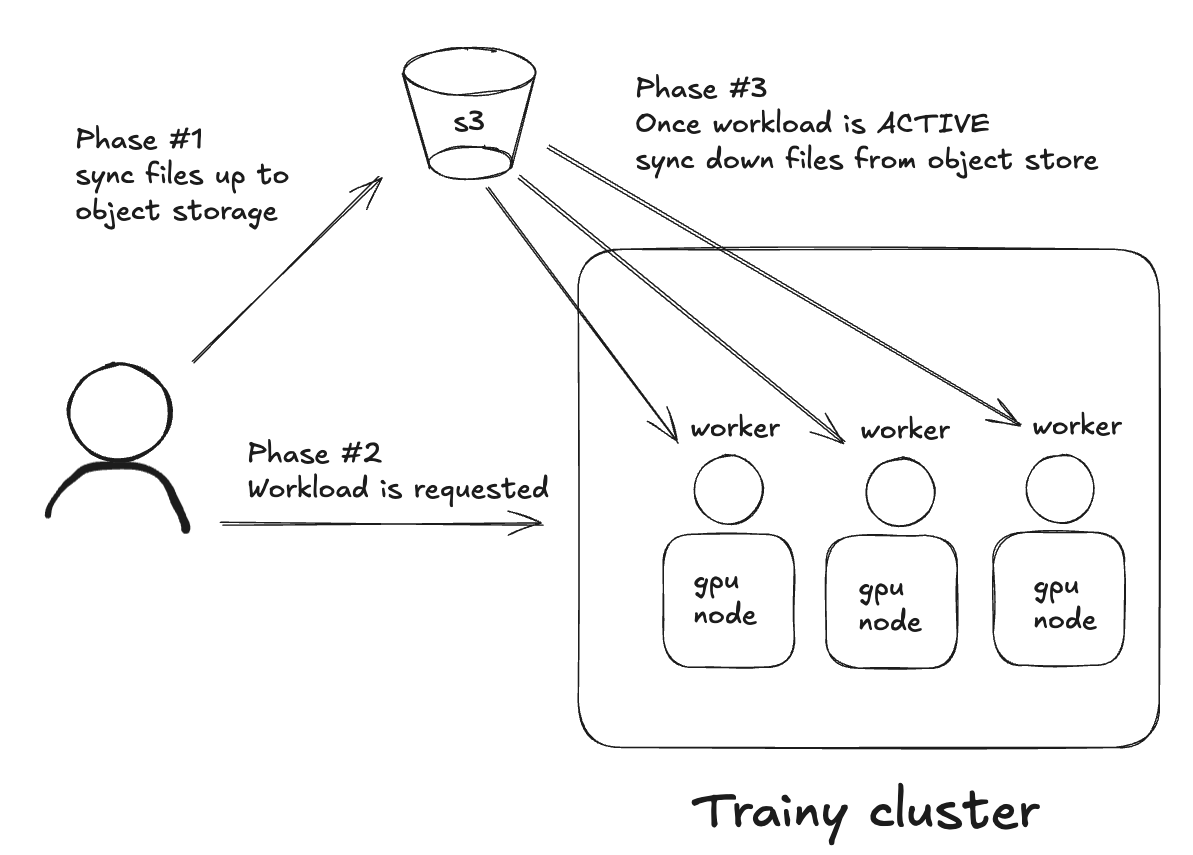
How Konduktor uploads and synchronizes your code and files before workload execution.
file_mounts backed by cloud storage buckets/credentials (the object
storage sync flow described below) is deprecated and will be removed in a
future version of Konduktor. Prefer building your application code into
your image or using workdir/git-based sync instead.
Users have the following options for submitting their application code as a Trainy workload.
(Re)building a docker image for every change and pushing it to a registry for launching a workload.
Committing changes to a development branch in git and checking it out in the workload
Synchronizing application code through file sync via file_mounts and workdir definitions.
The first option is often slow given the size of deep learning images so we focus on the the latter two here.
Full setup for file sync requires cloud storage configuration which can be found here.Konduktor mounts your cloud credentials into the job containers and places them in ~/.aws (S3) or ~/.config/gcloud (GS) at startup. If you plan to use command-line tools like aws s3, gsutil, or gcloud, ensure your image includes those CLIs or install them in your run: block.We check our cloud service account credentials in the Trainy cluster with this:
$ konduktor check <CLOUD STORAGE ALIAS> # s3, gs, etc.
Afterwards we configure the storage provider by setting ~/.konduktor/config.yaml
By default every machine auto-creates its own bucket named
konduktor-filemounts-<username>-<user_hash>. For teams this proliferates
buckets, so admins can instead point everyone at one shared bucket with
jobs.bucket (same key as SkyPilot’s config):
# ~/.konduktor/config.yamljobs: bucket: gs://konduktor-filemounts # {s3, gs}, an optional prefix is allowed
Each machine’s uploads are namespaced under its own folder so engineers
never collide, and each launch gets its own sub-folder:
gs://konduktor-filemounts/
  alice-1a2b3c4d/                 # <username>-<user_hash>, one per machine
    my-training-job-a1b2/         # <task_name>-<run_id>, one per launch
      workdir/
      local-file-mounts/0
      tmp-files/
  bob-9f8e7d6c/
    ...
Notes for admins:
The bucket must exist or be creatable by, and be readable/writable with,
every engineer’s cloud credentials (konduktor check gs) — the same
minimal permissions as the default flow.
An optional prefix is respected: gs://my-bucket/team-a places machine
folders under team-a/.
Konduktor never deletes the shared bucket or its objects; you own its
lifecycle. To keep it from growing unboundedly, attach an object TTL,
e.g. delete uploads older than 30 days:
With jobs.bucket set, Konduktor stops auto-creating per-machine
konduktor-filemounts-* buckets entirely, which keeps your cloud
inventory to a single, auditable bucket.
Use a .konduktorignore file to exclude files and directories from being synchronized.
It works similarly to .gitignore, and is evaluated relative to the sync root.
Patterns in .konduktorignore are matched relative to the location.
*.log # ignores *.log at the sync root (my_dir)secret.txt # ignores secret.txt at the sync root (my_dir)secret-dir1/** # ignores the entire secret-dir1/ subtreesecret-dir2/*.bin # ignores .bin files under secret-dir2/
Cloning private repositories is supported via both file sync of ssh keys to your object store or through secrets. This section demonstrates how to file sync an ssh key from our workstation onto the workload and configure SSH for pulling from a private repository.